







Marketplace KYC
The current manual KYC process is to verify and authenticate a customer’s identity to become a verified seller on the Marketplace. This process will take approximately 5 business days. If you were previously a verified seller and have sold a unit on the Marketplace you will be contacted with a unique link to re-verify and submit wire instructions. The manual KYC process will not give you access to the Compass Mining Wallet as it has been disabled.
For Entities submit a support ticket here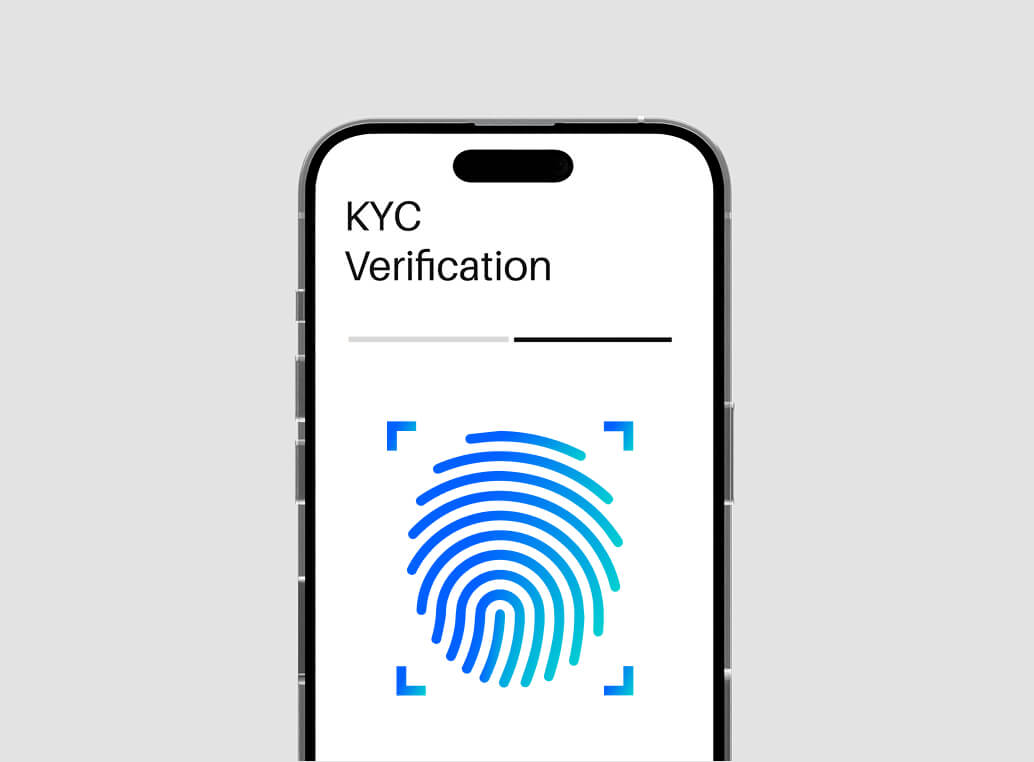
Compass Mining + ID-Pal Global Individual KYC Process:
Download ID-Pal
KYC Process must be on a mobile device.
Submit a valid ID
Passport, Driver’s License, or National ID Card. Cannot be Expired.
Take a selfie
Must be clear and well lit.
Enter Bank Details
ACH & wire routing numbers are different; please be sure to confirm you are submitting wire routing instructions so as to not cause a delay in receiving funds.
FAQ
How to Use the ID-Pal App:
Note: This video appears with ID-Pal Branding. The link you click on will feature the branding of Compass Mining
Is my Data secure on the ID-Pal app?
Once the submission is made, all data captured by the app is wiped from the phone. It is then transferred and stored securely for authorized individuals at Compass Mining to review and analyze.
Data at rest or in motion is encrypted and the data center is secured technically (firewalls etc.) and physically.
If you already have the ID-Pal app installed on your phone, do the following:
Delete the ID-Pal App.
Restart your device.
Click on the link you were sent via text or email to re-install the ID-Pal app.
When capturing a picture of your Identity Document/Liveness Test:
Avoid overhead lights to reduce glare.
Place your ID on a high-contrast background (a different, solid color).
If the auto-capture isn’t capturing your document
Wait a few seconds and you will be offered a manual capture option.
If capturing manually as above, fill as much of the screen with the ID card as possible without cutting it off as this will help with lower-resolution cameras.
If the liveness test isn't auto-capturing
Please follow the on-screen instructions when aligning your face in the frame provided.
If the liveness test still isn't working there may be a compatibility issue with your selfie camera: Please forward the link to a different device, and try again from that device
If you received a message in the app that said: We're having connection issues. Please wait while we retry (Or: There was a problem initializing the app. Please ensure you have a stable connection and try again.)
Please wait a few minutes in the first instance and try to use the app again.
This could be a setting on your phone. Try on 4G if you have tried to use WiFi already, or vice versa.
Otherwise, please send the app link to another device and make the submission from there. Once the submission is made, all data will be wiped from the phone. Please use an iOS device if you initially tried on an Android phone.
If the above steps didn't solve your issue:
Please forward the link to a different device, and try again from that device.
It's safe to use another person's smartphone to capture the ID-Documents.